Turn your own documents into a trusted knowledge base, let AI compose a full course from a one-line idea, then shape every activity in the builder before you publish.
Knowledge systems
A knowledge system is a bucket of vetted material on one subject. It is the only thing the AI is allowed to draw from, so this is where every course really begins.
Authoring lives under /admin-panel/cortex, organized by a five-tab sub-nav: Courses · Knowledge · Compose · Coach · Prompts. Start on Knowledge.
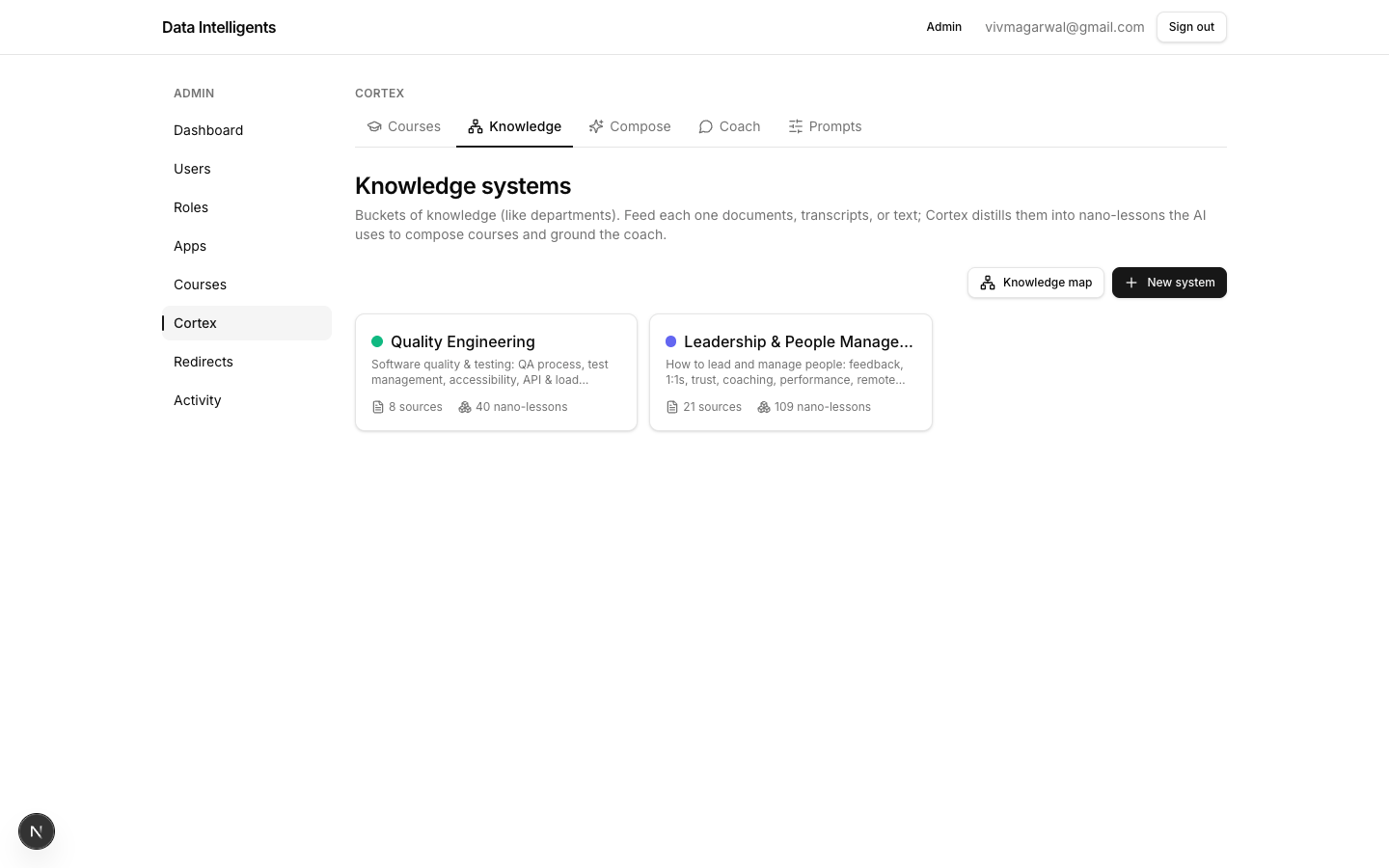
The /admin-panel/cortex/knowledge page (“Knowledge systems”) shows a grid of system cards — each with a color dot, name, description, a “N sources” count and a “N nano-lessons” count. Top-right you will find Knowledge map and New system.
The Knowledge systems grid — one card per subject, showing its source and nano-lesson counts.
1
Create a system
Click New system. Give it a Name, a Description (this helps the AI route ideas to the right system), pick a Color swatch, and click Create.
2
Open it
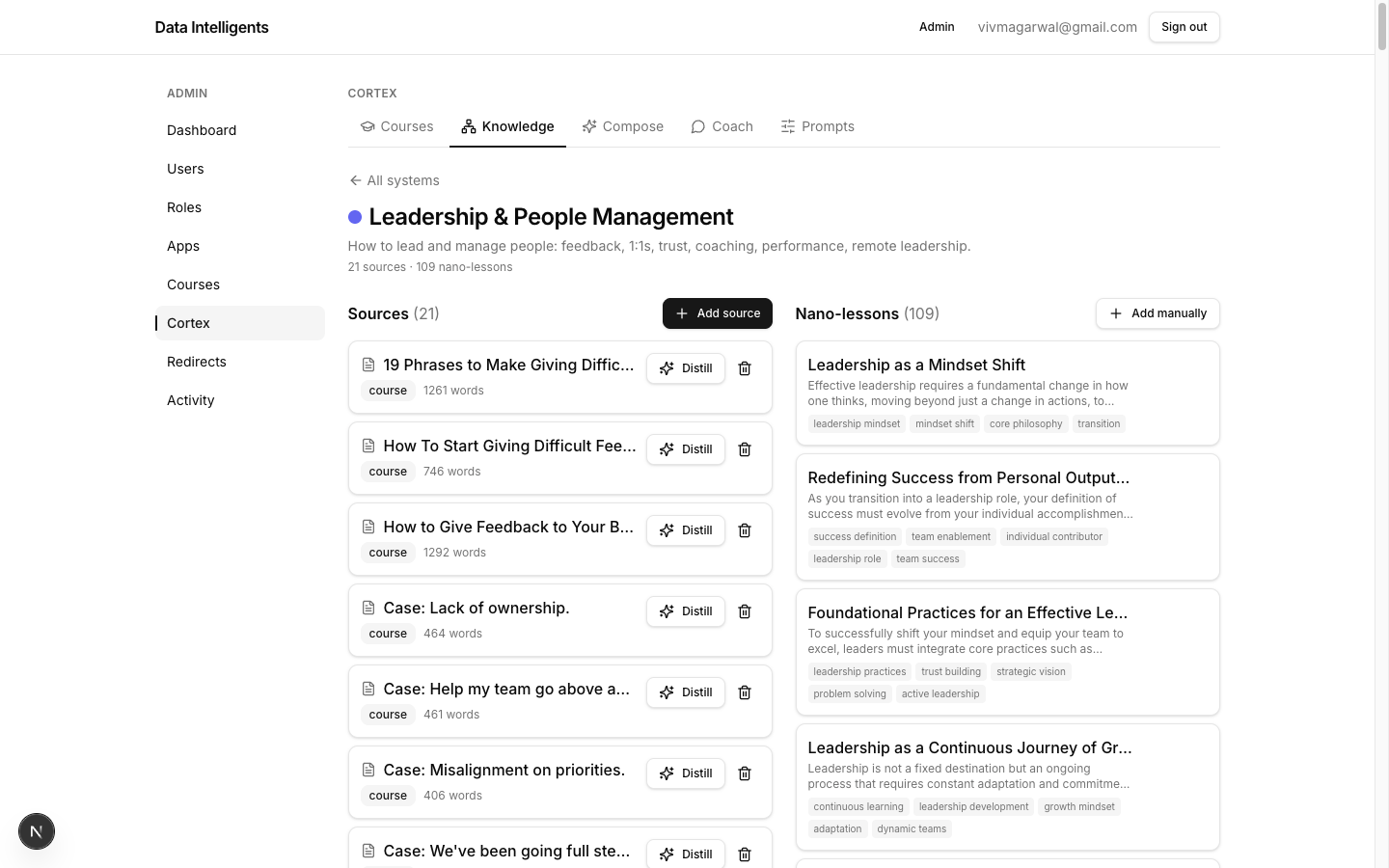
Click the card to open /admin-panel/cortex/knowledge/[systemId], which has two columns: Sources (the raw documents you upload) and Nano-lessons (the teachable units the AI actually reads from).
Write a clear description
The description isn’t decoration — Compose uses it to decide which systems are relevant to a course idea. A precise, specific description means better automatic knowledge selection later.
Ingestion & distillation
Two moves fill a system: add sources (your raw material) and distill them into nano-lessons (single-idea units the AI can retrieve).
Inside a system: Sources on the left, Nano-lessons on the right. Distill turns a source into reviewable proposals.
1
Add a source
In the system, click Add source. The dialog has an Upload / Paste toggle. Upload accepts PDF, DOCX, TXT, MD and VTT/SRT (plus an optional Title). Paste takes a Title, a Kind (paste or transcript), and the Text. Cortex extracts the text and stores the source with a kind badge and a word count.
2
Distill into nano-lessons
On a source row click Distill (the Sparkles icon). The “Review nano-lessons” dialog opens and shows “Distilling… this can take a moment”. When proposals appear, edit any Title / Summary / Body / tags, untick anything you don’t want, then click Accept N nano-lessons. Accepted lessons are embedded and added to the system.
3
Or add one by hand
Prefer to write directly? Use Add manually and fill in Title, Summary, Body (markdown) and Tags.
What a nano-lesson is
A nano-lesson is an atomic, single-idea teachable unit of roughly 80–350 words. It is the retrieval unit the AI draws from — both when composing a course and when the coach answers a question. Keep each one to one clean idea.
To see how everything connects, open the Knowledge map at /admin-panel/cortex/knowledge/map. Use the filter chips to show one system at a time, scroll to zoom, drag to pan, and click a node to inspect it. Reset view re-centers the map.
Compose a course with AI
Compose is a four-step wizard — Idea → Knowledge → Teaching → Outline — that turns a one-line goal into a full draft course, grounded in the knowledge you selected, plus fact-checked web research when that knowledge is thin.
Open Compose at /admin-panel/cortex/compose (“Compose a course with AI”). There is a human checkpoint at every step — you review and edit before moving on.
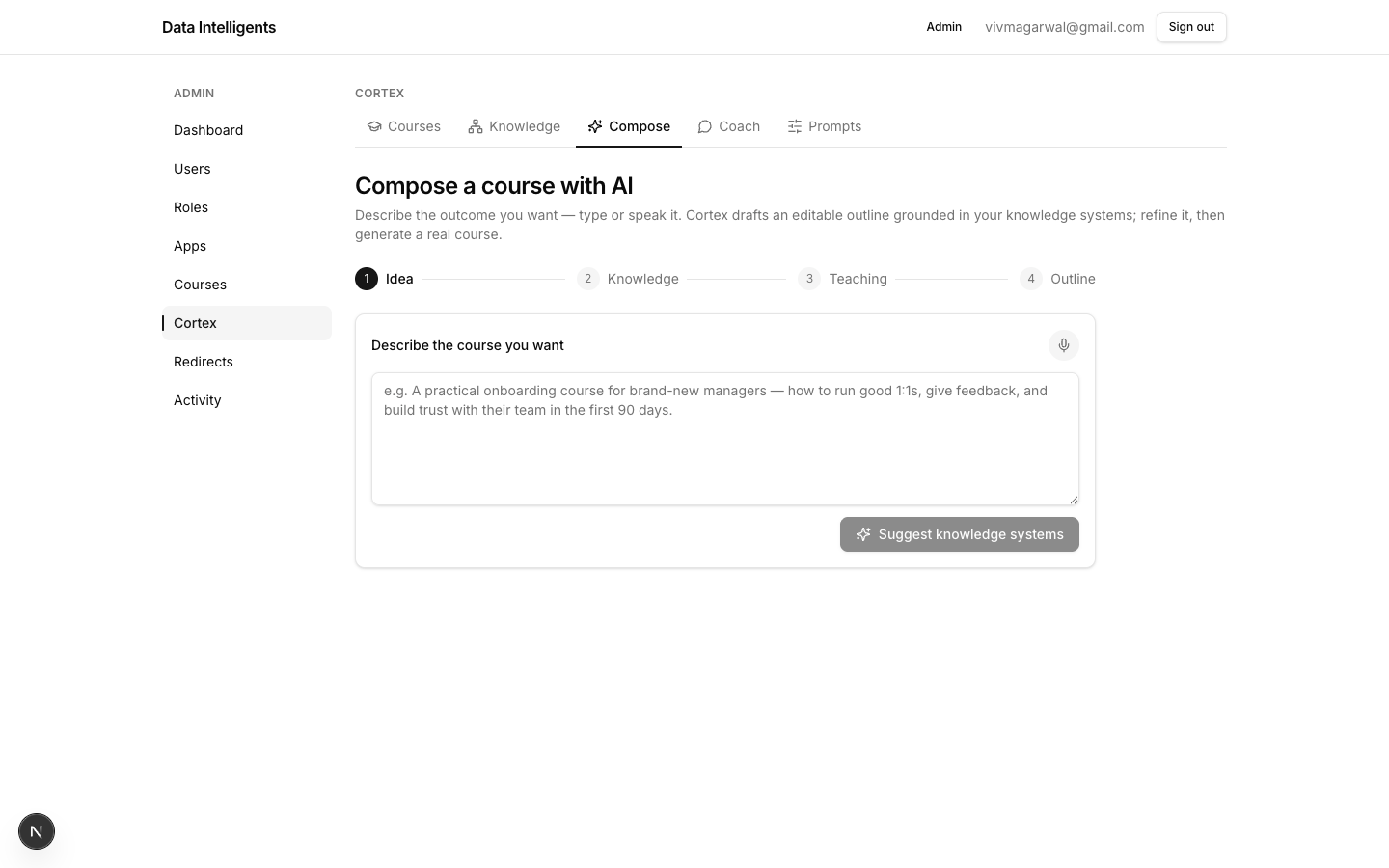
The AI Compose wizard: Idea → Knowledge → Teaching → Outline, with a checkpoint at each step.
1
1 · Idea
Describe the outcome you want the course to deliver (you can dictate it with the mic instead of typing). Then click Suggest knowledge systems.
2
2 · Knowledge
Cortex pre-selects the systems it thinks are relevant, shown as an “AI suggestion: …”. Click the system chips to tick or untick them. Leave Research the web to fill gaps ticked (on by default) so Cortex can supplement thin topics with fact-checked web research. Then click Next: teaching approach.
3
3 · Teaching
A suggested pedagogy appears with a name and a reason. You can edit the “Define the teaching approach” directive, pick a ready-made method from the catalog (Gagné, 5E, Explicit Instruction, and others), or choose “Write my own”. Then click Draft the outline.
4
4 · Outline
Edit the Course title and Subtitle. Per section: rename, reorder with the chevrons, or delete. Per activity: choose the type from the dropdown (Reading, Video, Embed, Quiz, Download, Flashcards, Matching, Sequencing), edit the title, reorder, regenerate with AI (↻), or delete. Use “Add activity” and “Add section” to extend it. To start over, use the “Rewrite the whole outline with AI” box and click Rewrite.
Not limited to your knowledge base
When a topic isn’t well covered by your systems, Compose researches the open web (Brave Search), fact-checks what it finds against the sources, and saves the vetted results as new nano-lessons in a Web Researchsystem — then grounds the course in that combined pool. After drafting, a short note shows how many sources were used and how many knowledge cards were created. The web only fills gaps; your curated knowledge is always preferred.
The footer summarizes the plan as “N sections · N activities”. When you click Generate course, Cortex expands every activity into full content, imports it as a real DRAFT course, and opens the builder.
Compose gets you 90% there
Generate produces a complete draft — not a finished course. Treat the builder as your editing desk: tighten copy, fix a quiz, add a video. Nothing goes live until you publish.
The course builder
Every course — whether AI-composed or hand-built — is finished in the builder. This is where curriculum, activities and details come together.
The Courses tab at /admin-panel/cortex lists your courses in a table (Course / Status / Edit), with Import JSON and New course at the top. To start from scratch, click New course, enter a Title, and click “Create & open” to land in the builder at /admin-panel/cortex/[id].
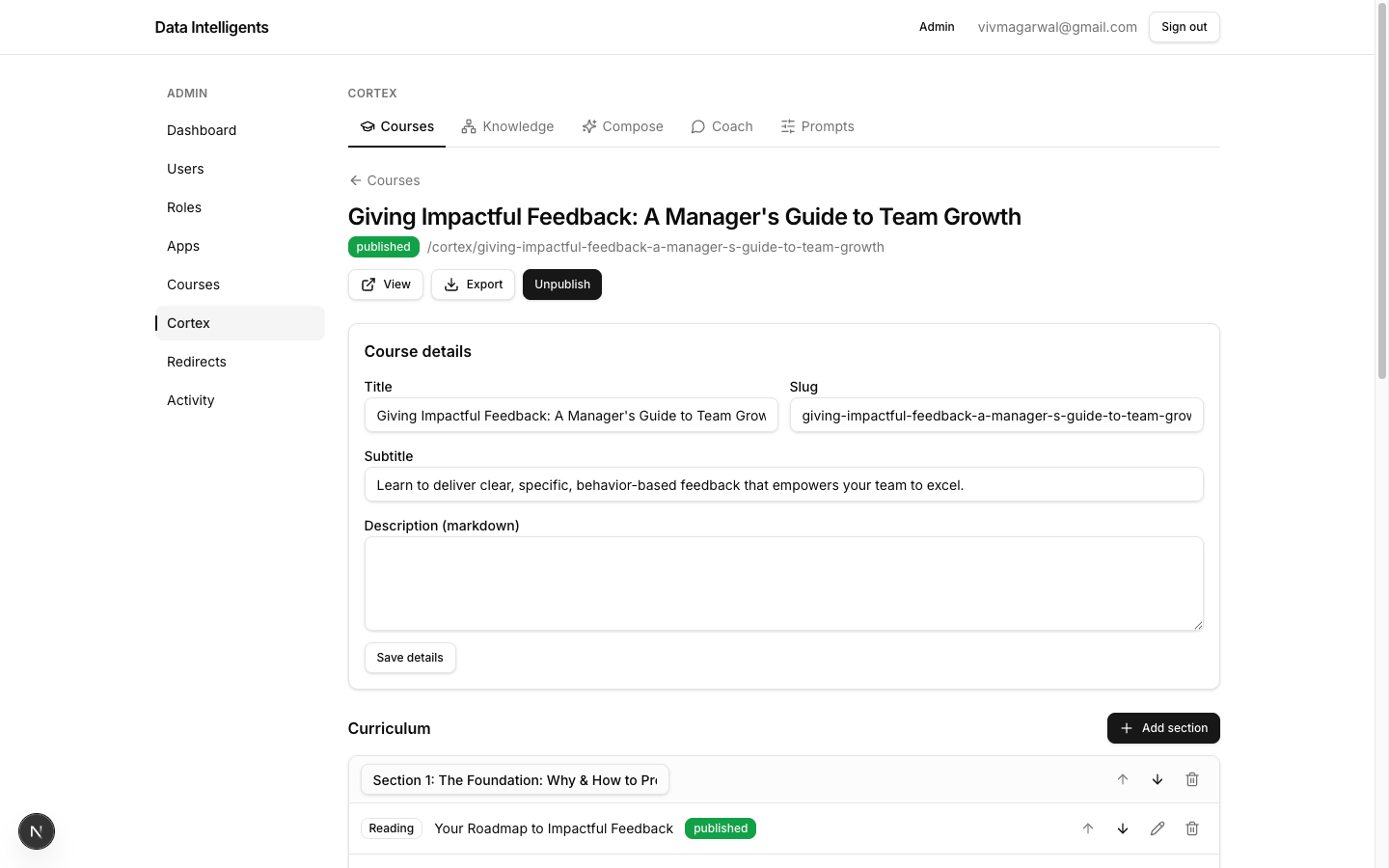
The course builder: details up top, curriculum below — sections holding activities you can add, reorder and edit.
The builder header carries the title, a status badge, and buttons for View, Export and Publish / Unpublish.
1
Set the details
In the “Course details” card, fill in Title, Slug, Subtitle and Description (markdown), then click Save details.
2
Build the curriculum
Click Add section; each section has an editable title plus move-up, move-down and delete controls.
3
Add activities
Inside a section click Add activity to open a dialog with eight type buttons (Reading, Video, Embed, Quiz, Download, Flashcards, Matching, Sequencing). The activity is created as a draft and its editor opens. Activity rows show a type badge, the title, a status, a “preview” marker if it is free-preview, and move / edit / delete controls.
4
Edit an activity
The activity editor has the Title, the type-specific fields, an Import / export as JSON option, “Published” and “Free preview” checkboxes, and Save. Saving as published validates the content first.
The 8 activity types
Each type has its own editor fields. Mix them freely within a section to build the rhythm you want.
Reading
Content written in Markdown.
Video
Upload a video (hosted on Bunny) or paste an existing Video ID (guid) plus its Library ID.
Embed
An Embed URL plus a Provider (YouTube, Vimeo, or Other).
Quiz
A Passing score (%) plus questions you add (Single, Multiple, or True-False) with the correct option(s) marked. Quizzes are graded server-side.
Download
A File URL, File name, and Size for a downloadable resource.
Flashcards
Front / Back rows — use “Add card” to build the deck.
Matching
Left → Right pairs — use “Add pair” to add more.
Sequencing
Steps entered in the correct order (use “Add step”). Learners see them shuffled and must restore the order.
Answers stay on the server
Quiz grading and the correct sequencing order are checked server-side, so learners never see the answer key in the page source.
Publishing
Publishing is a two-level gate: activities publish individually, and the course publishes as a whole. Only what is published reaches learners.
1
Publish the activities
In each activity editor, tick “Published” and Save. Publishing validates the activity’s content, so anything incomplete is caught here.
2
Publish the course
Back in the builder header, click Publish. Only published courses — and within them, only published activities — appear to learners.
3
Offer a free preview (optional)
Tick “Free preview” on an activity to make it playable to visitors who haven’t enrolled. It’s a great way to let people sample the course before signing up.
Draft by default
A freshly composed or imported course arrives as a DRAFT and stays private until you publish it. Use View to preview exactly what a learner will see before you flip it live, and Unpublish any time to pull it back.